
FEDTERM MANUAL - PLAYING FEDERATION 2 WITH FEDTERM
SENDING COMMANDS TO THE GAME
General Commands
Fed2 is a text game, and you tell it what you want to do by typing commands into the input window and pressing return. There is a full list of the game commands on the web site at http://www.ibgames.net/fed2/commands/index.html.
You can only type one command at a time into the input window.
You can edit your commands in the input window as normal until you press the return key to send it off to the game. 'Home' and 'End' move the cursor to the start and end of the line; if you have typed enough text to move you onto a second line, 'Ctrl-Home' and 'Ctrl-End' move you to the start and end of the text.
You can cut and paste between these two windows, or between FedTerm and another program, using the standard Windows keys - 'Ctrl-Ins' or 'Ctrl-C' for copy, and 'Shift-Ins' or 'Ctrl-V' for paste. You can also access these commands through the standard windows right-click menu - just click the right mouse button. Note that you cannot paste text into the output window.
Movement Commands
There are a number of different ways you send the movement commands to the game - apart from typing them into the input window, of course!
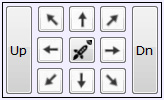
Underneath the map are eight movement arrows, arranged in the shape of a compass. Click on one of the arrows and the appropriate command will be sent. Note that FedTerm has no way of knowing if it is possible to move in a certain direction or not, so it will send the command regardless of whether there is an exit that way.
There are two buttons which will move you Up and Down, but if you want to use the commands 'IN' and 'OUT' you will have to type them. To speed up getting in and out of your ship, the centre button generates the 'BOARD' command.
You can also move around using the arrow keys on your keyboard. Those only work if there is no text in the input window, otherwise FedTerm will assume you want to move the cursor around the text! If you are using the numeric keypad then make sure you have NumLock turned off, or the keys will generate numbers in the input window instead of movements.
The keys correspond to the eight compass directions as follows:
Home/7 NW |
Up arrow/8 N |
PgUp/9 NE |
| Left arrow 4 W |
5 BOARD |
Right arrow/6 E |
| End /1 SW |
Down arrow/2 S |
PgDn/3 SE |
Storing Text on F-Keys and Start-up Commands
If there are commands that you use frequently then you can tell FedTerm to remember them, and then send them to the game at the touch of a key. You can store up to 400 characters of text on each of the function keys (F1 to F12).
As well as the f-keys you can specify commands to be executed when you log into the game, so you can set it up to issue all the commands you normally do when you log on - set your mood, read the noticeboard, turn spynet notices on, send a greeting to the comms and so on.
To put commands on f-keys or the specify start-up commands, select the 'F-Keys and startup' item from the 'Options' menu. This brings up the f-key box where you type in the commands you want to assign to that key. The start-up commands are first, followed by the f-keys in order.
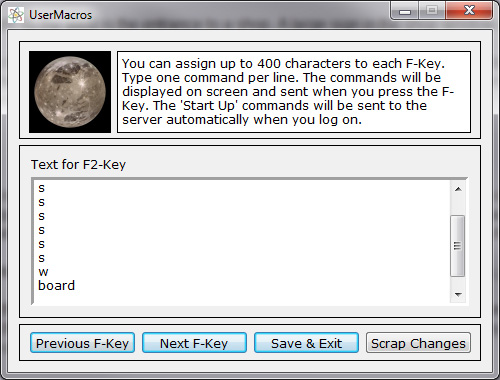
You can have more than one command on an f-key - just put each command on a separate line. Use the 'Next F-Key' and 'Previous F-Key' buttons to move between the different f-keys.
When you have finished setting up your f-keys, click ‘Save & Exit’ or if you don’t want to save what you’ve done, click ‘Scrap Changes’.
Pressing the f-key will send the text for that key to Federation - the equivalent of you typing it into your input window and pressing return.
We do not advise that you put too many commands on a key - sending too many commands in one go can be dangerous, particularly if they are movement commands, because if you make a mistake you cannot stop the game acting on all the commands sent.
Next page in Playing Fed section
Previous page in Playing Fed section
