
FEDTERM MANUAL - GETTING STARTED
LOGGING ONTO FED2
Setting Up your Fed2 Account and Character
When you play Fed2 you use a character which represents you in the game (game characters are sometimes called personas or avatars). You also need an account, with a username (or ID) which will identify you every time you log on, and a password for security. If you don't already have an account, or you want to set up a new one, FedTerm will take care of this for you.
Select the 'New Account/Avatar' item from the 'Connect' menu, and the New Account & Avatar dialog box will come up on the screen.
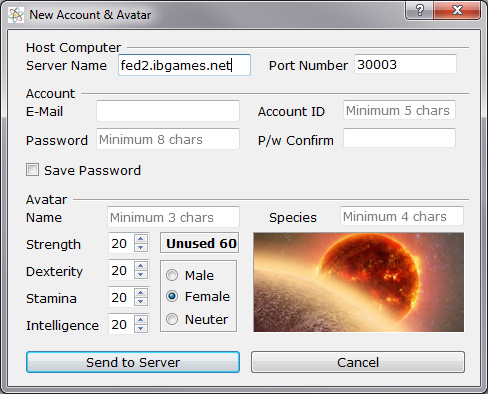
The first part of the dialog box contains the details of the server address, so the front-end knows where to log on. These are already set to the name of the computer - fed2.ibgames.net - and the port number - 30003. Do NOT change them, or the front-end will not be able to find the Fed2 computer.
The next part contains boxes for you to fill in information for your new account: type in your email address, the account ID you want to use, and the password (twice) and. Make sure the 'New Account' box is checked. You can choose whether to have the front-end save the password, by clicking the box so it is checked.
Note that when you type the password, you will not see what you type on the screen; instead you will see a row of asterisks. Your password will never be displayed on the screen, as a security measure.
The bottom part of the box is for the details of your new Fed character: name, species, and gender, and the distribution of stats. This starts out with 20 points allocated to each of the stats, and 60 unused stats. Use the up and down arrows to change each stat until you have used up all the unallocated points. For information about what the different stats signify, see the game manual at http://www.ibgames.net/fed2/guide/start/character.html.
When you have filled in all the details, click the 'Send to Server' button. FedTerm will log on, set up your new account, set up your new character, and then return control to you once you are in the game.
Logging On Again
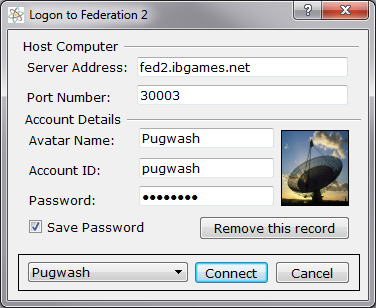
Having successfully set up your account and character, the next time you log on, select the 'Login to Fed2' item from the 'Connect' menu. The ID and password for the character will be filled in for you. All you have to do is click the 'Connect' button.
What Can Go Wrong?
There are two things that can go wrong when FedTerm tries to set up your new account and character.
1) The account ID you chose is already in use. In that case, you need to try again with a different ID. When you look at the 'New Account & Avatar' dialog box it will still have all the details you typed in; just change the ID and try again.
2) The character name you chose is already in use. The account is set up successfully, but not the character. FedTerm does not handle this situation very well, so the best solution is to abandon the account you just set up and pick a new account ID to go with a new choice for your avatar name.
Setting Up a New Character on an Existing Account
FedTerm doesn’t let you set up a new character on an already existing account; you will need to set up a new account to go with your new character.
If you die dead-dead and your character gets deleted, your account will also be deleted so you can set up another account using the same ID.
Using FedTerm with an Existing Account
If you already have a Fed2 account and character, and you wish to use FedTerm to log on to the game, select the 'Logon to Fed' item in the 'Connect' menu and fill in the account ID and password.
You can also type in the name of your Fed character, which will then show up in the title bar of the program when you are logged on, to remind you which character you are playing - this is optional.
Using More Than One Fed2 Account
You can enter the account details for as many Fed2 accounts as you like, which will then appear in a dropdown menu. The name of the current character shows at the bottom of the box. Click on the character name to select a different name, or click ‘Add Avatar’ to enter the details of a new character.
You can also change the details, for example if you change your password, simply by altering the information as it appears in the boxes; FedTerm will remember whatever you type.
When you log on, your character name will display in the title bar of the program, to remind you which character you are using.
Next page in Getting Started section
Previous page in Introduction section
