
FEDTERM MANUAL - PLAYING FEDERATION 2 WITH FEDTERM
THE STAR SYSTEMS PAGE
The systems page displays information about planets and the star systems they are in. To get to this page, click on the Systems tab.
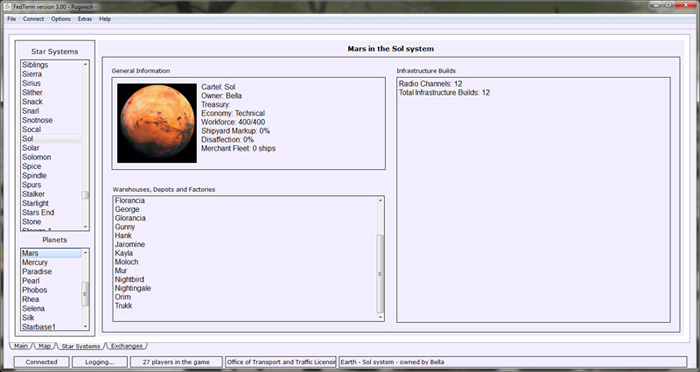
When you first log on to Fed2, FedTerm will make sure it has an up to date list of all the systems and planets linked into the game. All the systems are listed down the left hand side of this page. Clicking on a system will give you a list of the planets in that system, in the planet box on the right hand side. Click on a planet name and the planet's information will display on the screen.
The systems page also displays a picture of the selected planet, if there is one available - otherwise it defaults to a picture of a hyperspace link. The FedTerm installation comes with pictures of all the Solar System planets, and you can download pictures of player planets from the planet gallery at http://www.ibgames.net/fed2/fedterm/planets/index.html.
If you own a planet, you can make your own planet picture which you can swap with other players. The picture size is 172 x 172 pixels, and it must be in .png format. You should save it with a filename that matches your planet name (for example marina.png or rigel 4.png). You need to put the planet picture in the planets sub-folder of your FedTerm folder, and email it feedback@ibgames.net so it can be added to the gallery on our web site.
Next page in Playing Fed section
Previous page in Playing Fed section
